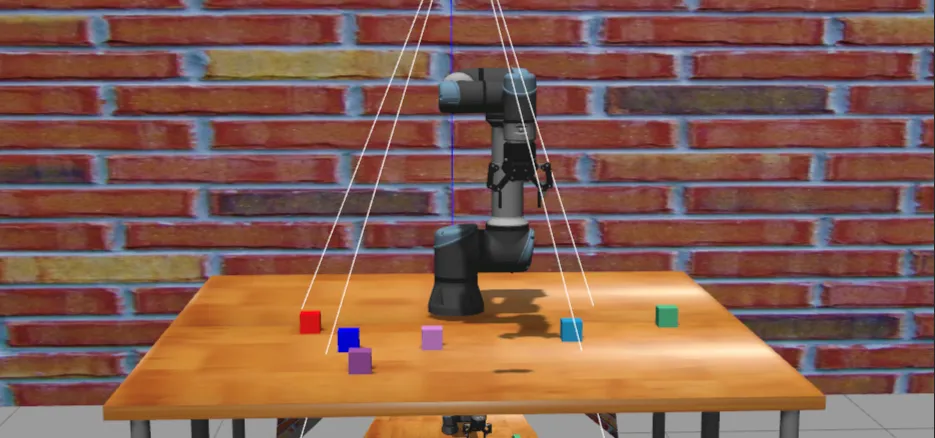
推荐使用WSL启动,虚拟机太卡了,安装WSL2教程 ↗
部署环境#
准备一个Ubuntu 22.04环境,在 VMware 虚拟机中,确保网络模式是 NAT 或 桥接模式。
lsb_release -a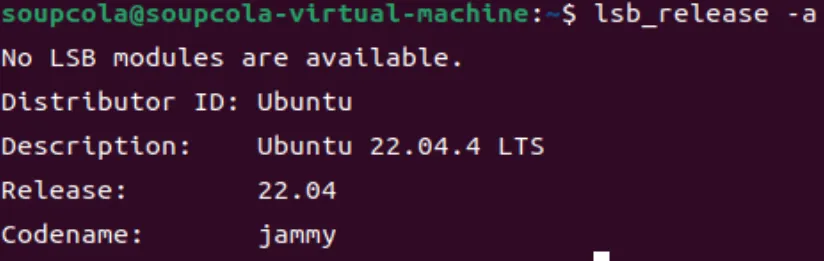
更换阿里云镜像源#
备份原始源
sudo cp /etc/apt/sources.list /etc/apt/sources.list.bak更换为阿里云镜像源
sudo nano /etc/apt/sources.list删除原来的内容,并将下面的内容复制进去
deb https://mirrors.aliyun.com/ubuntu/ jammy main restricted universe multiverse
deb https://mirrors.aliyun.com/ubuntu/ jammy-updates main restricted universe multiverse
deb https://mirrors.aliyun.com/ubuntu/ jammy-backports main restricted universe multiverse
deb https://mirrors.aliyun.com/ubuntu/ jammy-security main restricted universe multiverse更新软件包
sudo apt-get update推荐安装open-vm-tools,方便主机与虚拟机之间直接复制粘贴
sudo apt-get install open-vm-tools-desktop安装完open-vm-tools后,重启虚拟机即可。
安装ROS2#
这里推荐使用鱼香ROS一键安装,非常方便~
下载并执行脚本
wget http://fishros.com/install -O fishros && . fishros记得选择安装ROS2 Humble以及VSCode
完成ROS2的安装后,配置环境变量
echo "source /opt/ros/humble/setup.bash" >> ~/.bashrc
source ~/.bashrc安装Moveit2#
sudo apt update
sudo apt install ros-humble-moveit-*因为项目需要物理仿真支持,所以需要安装gazebo
sudo apt install ros-humble-moveit-common ros-humble-moveit-ros-visualization
sudo apt install ros-humble-gazebo-ros-pkgs ros-humble-gazebo-ros2-control
sudo apt install ros-humble-image-pipeline
sudo apt install ros-humble-compressed-image-transport
sudo apt install ros-humble-compressed-depth-image-transport
sudo apt install ros-humble-vision-msgs安装UR5e机械臂依赖#
sudo apt install ros-humble-ur-client-library
sudo apt install ros-humble-ur-description ros-humble-ur-moveit-config安装OctoMap依赖#
sudo apt install ros-humble-octomap-*安装深度相机驱动Realsense与目标检测环境YOLO#
sudo apt install ros-humble-realsense2-camera
pip install ultralytics克隆项目仓库#
首先创建工作区
mkdir -p ~/ros2_ws/src
cd ~/ros2_ws/src克隆项目源码
git clone https://github.com/SoupCola/ros2_moveit2_ur5e_grasp.git手动创建rosdep配置并更新
sudo mkdir -p /etc/ros/rosdep/sources.list.d
cat <<EOF | sudo tee /etc/ros/rosdep/sources.list.d/20-default.list
yaml https://ghproxy.com/https://raw.githubusercontent.com/ros/rosdistro/master/rosdep/osx-homebrew.yaml osx
yaml https://ghproxy.com/https://raw.githubusercontent.com/ros/rosdistro/master/rosdep/base.yaml
yaml https://ghproxy.com/https://raw.githubusercontent.com/ros/rosdistro/master/rosdep/python.yaml
yaml https://ghproxy.com/https://raw.githubusercontent.com/ros/rosdistro/master/rosdep/ruby.yaml
EOF

rosdep update安装依赖并编译
cd ~/ros2_ws
rosdep install --from-paths src --ignore-src -r -y
colcon build --symlink-install编译完成后,source工作区
source ~/ros2_ws/install/setup.bashWSL环境下的图形界面配置#
如果你在使用WSL(Windows Subsystem for Linux)环境,需要配置以下环境变量来解决图形界面显示问题:
Gazebo完整配置#
export GAZEBO_IP=127.0.0.1
export DISPLAY=$(cat /etc/resolv.conf | grep nameserver | awk '{print $2}'):0
export LIBGL_ALWAYS_INDIRECT=0这些命令的作用是:
export GAZEBO_IP=127.0.0.1:设置Gazebo服务器的IP地址为本地回环地址(Gazebo专用)export DISPLAY=$(...):设置X11显示环境变量,从DNS配置中获取nameserver地址作为显示服务器export LIBGL_ALWAYS_INDIRECT=0:设置OpenGL渲染模式为直接渲染
RViz配置#
对于RViz,只需要配置X11显示和OpenGL渲染环境变量(与Gazebo的显示相关部分相同):
export DISPLAY=$(cat /etc/resolv.conf | grep nameserver | awk '{print $2}'):0
export LIBGL_ALWAYS_INDIRECT=0这两个命令的作用是:
export DISPLAY=$(...):设置X11显示转发,使WSL中的图形应用能够显示在Windows上export LIBGL_ALWAYS_INDIRECT=0:设置OpenGL直接渲染模式,提高图形性能
设置完成后,就可以正常启动RViz了:
rviz2注意:GAZEBO_IP环境变量是专门为Gazebo网络通信设计的,而DISPLAY和LIBGL_ALWAYS_INDIRECT是通用的图形环境变量,适用于所有需要在WSL中显示的图形应用程序。
启动系统#
每次启动前杀死之前的进程
killall -9 gzserver gzclient rviz21. 启动仿真环境
ros2 launch ur_bringup simulation.launch.py
2. 启动抓取demo
ros2 launch ur_bringup start_grasp.launch.py仿真环境启动成功
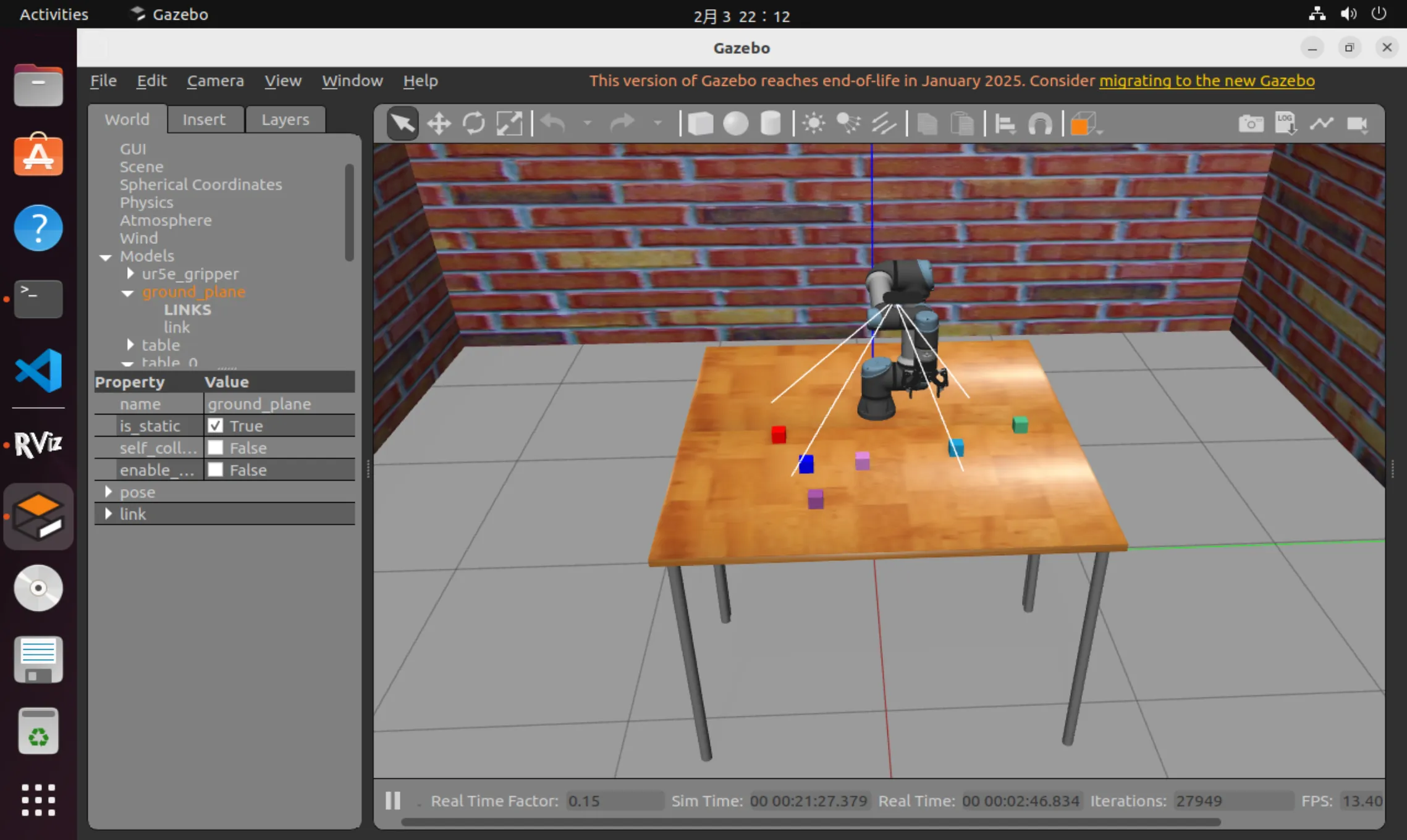
有时候启动卡在了Gazebo的启动界面(或者机械臂加载不出来等),这可能是因为之前开启的gzserver gzclient没有正常关闭导致的,执行
killall -9 gzserver gzclient gazebo